


OTG Reader
4.130.00 Reviews
App Specs
- Version
- 18.0
- Updated On
- License
- Free
- Downloads
- 100,000+
- Developer
- SweatersApp
- Categories
- Libraries & Demo
- Platform
- Android
Screenshots
 Analysis by AppCompare
I find USB access on a phone most useful when it solves a small, specific problem: checking a document from a flash drive, moving a file without a computer, or opening media stored outside the phone. That is the space OTG Reader is meant to fill. It is a free Android file utility in the Libraries & Demo category, made by SweatersApp, and its focus is practical rather than broad. It has an average rating of 4.1 from around 1.5K ratings, with over 100K installs, so it has found an audience among people who need their phone to work with external storage.
The useful question is not whether a phone can replace a full desktop file manager; it is whether this app makes a compatible USB drive easy to reach when you are away from one. That depends on your device, adapter, and drive as much as on the app. If those pieces line up, a compact tool can save time. If you mainly browse files already on your phone or use cloud storage, a separate OTG reader may add little to your routine.
What free access means here
The app is free to download, which makes trying it a low-commitment choice. I would treat that as a useful entry point, not as proof that every possible function or future condition is guaranteed. The key value is whether it handles your own USB workflow well: connect the drive, locate what you need, and carry out a simple file task without having to find a computer.
It is rated Everyone, and its release date is May 22, 2019; the current version is 18.0. It runs on Android 7.0 or later. Those details help set expectations about the platform, but compatibility still depends on the handset supporting USB OTG and on the connection being suitable. Before relying on it for a time-sensitive job, I would test the exact phone, adapter, and drive combination you plan to use.
Using a USB drive without turning your phone into a computer
First off, let's talk about how easy it is to get started. All you need is an OTG (On-The-Go) cable, which connects your USB drive to your Android device. Once you've got that sorted, the OTG Reader app steps in to make the magic happen. It's super simple to install from the Play Store, and you're ready to dive into your files.
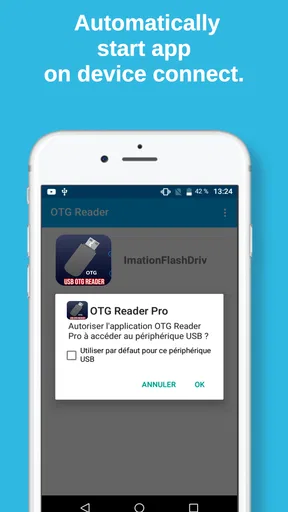
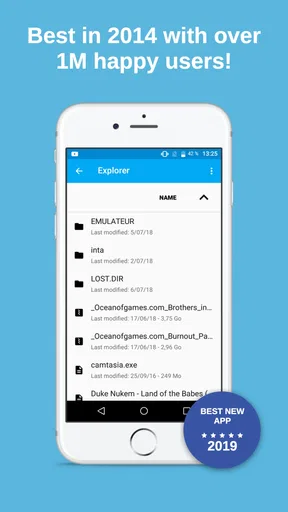
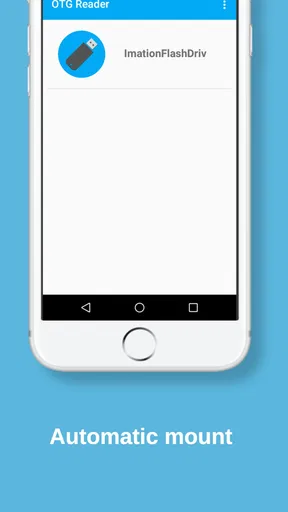
The interface is clean and intuitive, which is always a win in my book. There's no fumbling around trying to figure out where things are. The app does a fantastic job of detecting when a USB drive is connected, and it immediately displays your files.
Making file access useful in everyday situations
One of the standout features of this app is its file management capabilities. You can easily copy, move, and delete files with a few taps. It supports a wide range of file formats, so whether you're dealing with documents, music, or videos, you’re covered.
Worth Reading Before You Choose

EA SPORTS FC Mobile 26 Is a Bigger Football Game, but It Takes Time

Flipboard Shows What News Apps Must Do Beyond the Feed

Switching to Android Auto Means Rethinking Your Driving Routine

Google Calendar Makes a Crowded Week Easier to Manage

Ludo King Makes the Most of the Minutes Between Plans

Baby Panda World Brings Quick Play to Modern Phones, but Its Game Library Feels Busy
Another cool feature is the ability to play media directly from the USB drive without transferring files to your phone. This is perfect for those moments when you're on the go and need quick access to your media collection.
Security is also a top priority. The app provides password protection for your USB drives, ensuring that your data remains safe from prying eyes. This feature gave me peace of mind, especially when handling sensitive documents.
A realistic use is a workday handoff: someone gives you a drive with a presentation or reference files, and you need to check the contents while commuting or before a meeting. Opening the files directly can be more convenient than copying everything onto the phone first. For a smoother handoff, I would keep only the material needed for the task on the drive, confirm the files open before leaving, and avoid deleting or moving originals until I know I have another copy. A quick file operation is convenient; an accidental one can be much harder to undo.
There is also a useful distinction between viewing and importing. If you only need to watch a video or inspect a document once, direct access can spare internal storage. If you need to edit something repeatedly, use it in another app, or keep it available offline, copying a working version to the phone may be less fiddly. That choice depends on the task, not just on whether the drive is visible.
Performance, formats, and the practical limits
Now, let's talk performance. The app runs smoothly without any noticeable lag, even when dealing with large files. I tested it with a couple of hefty video files, and it handled them like a champ.
Usability-wise, the app is quite accessible. The icons are well-designed and the text is easy to read. It’s clear that a lot of thought went into making this app user-friendly.
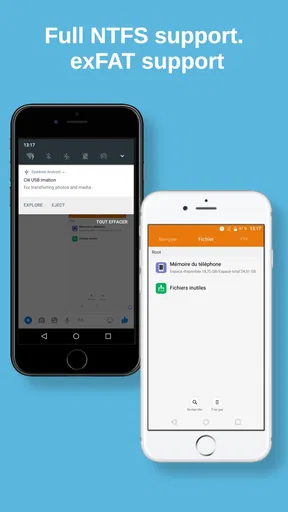
The store summary highlights Type C connections and NTFS and exFAT support, which matters if your flash drive uses one of those formats or your phone has a Type C port. Still, file-system support is not a guarantee that every setup will behave identically. A drive that draws more power than a phone can provide, a worn adapter, or a device without OTG support can interrupt the process. If a drive does not appear, I would first check the physical connection and test the adapter rather than assume the file manager is at fault.
For large transfers, I would also plan around the task rather than treat the phone as a desktop replacement. Keep the screen awake while a copy is in progress, avoid disconnecting the drive before the operation finishes, and check the destination afterward. These are simple habits, but they matter most when the files are important. Direct playback is handy for casual use, while a long transfer or detailed file organization may be more comfortable on a computer.
Password protection is worth considering as a convenience layer, but I would not treat it as a substitute for keeping a backup of sensitive files. Before trusting any protection method with important material, test how it works with a nonessential file and make sure you understand how you will access the drive on another device. A phone-based workflow is strongest when it is one part of a sensible storage routine, not the only copy of something irreplaceable.
How it compares with ordinary file managers
Many Android phones already include a file manager, and that is usually enough for moving items between folders on internal storage. A cloud service is often better when you need the same documents on several devices or want to share them remotely. This app makes more sense when the files are physically on a USB drive and the immediate job is to browse, copy, move, delete, or play them from that drive.
That narrower purpose is both its strength and its limit. It can reduce the steps between plugging in a drive and reaching its contents, but it does not replace the broader organization and cross-device access of a desktop file manager or cloud workspace. If your everyday files already live in cloud storage, a dedicated USB workflow may be unnecessary. If you regularly receive files on flash drives, the focused approach can be more direct than moving them through a computer first.
Compatibility, maintenance, and who should pass
It's worth noting that the app is compatible with a wide range of Android devices. Whether you’re using the latest flagship phone or an older model, OTG Reader has got you covered. This versatility makes it a great choice for anyone looking to expand their phone's capabilities.
In terms of support, the developers seem pretty on-the-ball. They regularly update the app to fix bugs and introduce new features, which is always a plus. If you run into any issues, their customer service is responsive and eager to help.
For a prospective user, I would make one check before depending on it: confirm that the phone itself can host an OTG connection, then try the intended drive with the adapter you will actually carry. Type C describes a connector, not a promise that every phone-and-drive combination will work. If you rarely handle USB storage, or your device cannot connect to external drives, a built-in file manager or cloud app is the more sensible choice.
It is also a poor fit for someone expecting a complete backup system or a replacement for a computer. The useful job here is access and basic file handling. When you need a large archive reorganized, a complex set of documents edited, or multiple copies safely managed, a desktop workflow gives you more room to inspect and verify what is happening.
A sensible choice for a specific job
All in all, I found the OTG Reader app to be a handy tool for anyone needing quick and easy access to USB drives on their Android device. Its seamless functionality, coupled with a user-friendly interface, makes it a must-have for tech enthusiasts and casual users alike.
If you often find yourself needing to access files on the go, give this app a try. It's a game-changer that could save you a lot of hassle. Plus, it’s free to download, so why not give it a whirl?
To sum it up, the OTG Reader app delivers exactly what it promises, and then some. It’s efficient, reliable, and, most importantly, it just works. Whether you're a tech guru or just someone who needs a bit more functionality from your phone, this app is definitely worth checking out.
My recommendation is conditional but straightforward: install it if a USB drive is part of your real routine, especially when you need to inspect or play files without carrying a laptop. Try it with a low-stakes file first, and keep another copy of anything important. If you only need ordinary on-phone browsing, or you prefer cloud-based access across devices, you can skip it without missing a core phone feature. For the right Android setup, free access makes it an easy tool to test; the value comes from whether it solves that recurring USB task for you.
Pros
- Supports various file formats seamlessly.
- User-friendly interface for easy navigation.
- Fast file transfer with minimal lag.
- No internet connection required for use.
- Compatible with most USB devices.
Cons
- Limited support for older Android versions.
- Occasional app crashes reported by users.
- Ads can be intrusive at times.
- Lacks advanced file management features.
- Requires external adapter for some devices.
FAQs for OTG Reader
What is OTG Reader and how does it work?
OTG Reader is an app designed to enable your smartphone or tablet to connect and interact with USB devices. It works by utilizing the On-The-Go (OTG) functionality, allowing you to access files from USB drives directly on your device. Simply connect a compatible OTG cable and the app will recognize the connected device, letting you manage files effortlessly.
Is my device compatible with OTG Reader?
To use OTG Reader, your device must support USB On-The-Go (OTG) functionality. Most modern Android devices are OTG-compatible, but it’s crucial to check your device specifications or manufacturer’s website to confirm. Additionally, you’ll need an OTG cable or adapter to physically connect USB devices to your smartphone or tablet.
What types of files can I access with OTG Reader?
OTG Reader supports a wide range of file types, including documents, photos, videos, and music. The app allows you to view, transfer, and manage these files seamlessly. It also supports various file systems like FAT32, exFAT, and NTFS, ensuring compatibility with most USB devices and storage media.
Are there any security concerns when using OTG Reader?
While OTG Reader is designed to be secure, it's important to be cautious when connecting external USB devices, as they may carry malware or viruses. Ensure that you trust the source of your USB devices and consider running antivirus software on your device to mitigate any potential risks associated with file transfers.
Does OTG Reader require any special permissions?
Yes, OTG Reader requires certain permissions to function properly. These include access to your device’s storage to read and write files, and permission to manage USB devices connected to your smartphone or tablet. These permissions are necessary for the app to deliver its core functionalities and ensure a seamless user experience.


